Living a SharePoint life

Showing posts with label Development. Show all posts

Wednesday, March 8, 2023

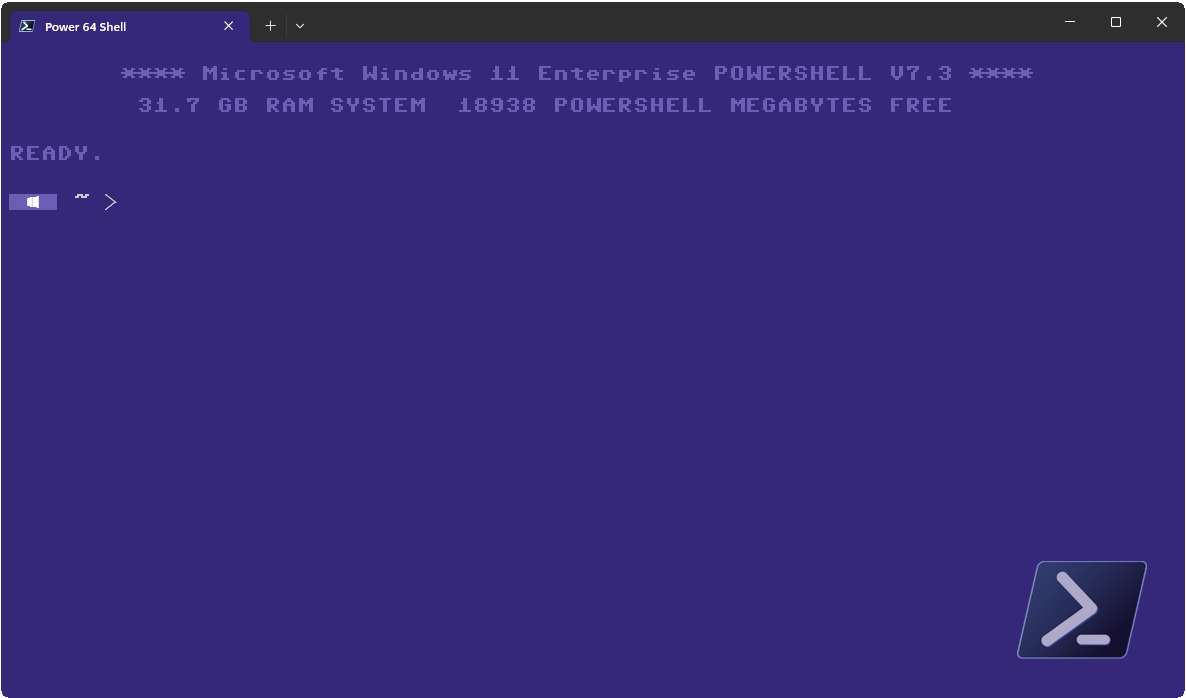
The Retro Terminal - Looking good in 8-Bit | Part 3

Since my last two articles, PowerShell, as well as the terminal itself, has evolved. It is therefore time to bring Retro PowerShell up to date. Where the first two parts cover Windows PowerShell, this article is an update for PowerShell Core and Windows Terminal and will show you how to let your Terminal look like a Commodore 64.

This post is

Friday, March 15, 2019

Setting SharePoint View properties with the PnP-Framework

The PnP-Framework has made a lot of task easier when taking care of a SharePoint environment. However, the documentation is still… ehem, let’s say developer friendly. In this article I’ll take a look at the Set-PnPView cmdlet and what values can be configured and why.


Monday, October 8, 2018

Session I held at the Ignite 2018

Since we, in the company I work for, have rolled out 65,000 Office 365 licenses and are one of the most successful companies ever with Yammer and Teams, I had the great luck this year to be invited by Microsoft as a speaker to the Ignite 2018 in Orlando. Together with my colleague we held a total of 3 sessions and were interviewed in a podcast.

In the meantime the sessions are available on YouTube. The links to the videos can be found here:

Find out how one of the biggest retailers in Europe is using Microsoft Teams - BRK2366

With approximately 48,000 frontline workers spread across 5,000 stores around Europe, dm drogerie's employees communicate with each other by smartphone and Microsoft Teams. The introduction of modern communications tools based on Office 365 has led to a productivity increase felt by every employee and ultimately by our customers. We describe how we encouraged adoption by taking away the fears of colleagues who weren’t IT-affine and showing them the value to be gained from the new tools. Across the entire company, communications skills, team and project work has been taken to a new level. We tell the success story from the first pilot through the tsunami of demand to the roll out in production.


Build your communities using SharePoint and Yammer - BRK2076

Learn how SharePoint and Yammer bring together modern content and conversations to deliver a best-in-class community solution. Understand what's new and coming next for building communities across your organization using Microsoft 365. Leaders from Rolls Royce and DM share how to champion a community approach to business challenges for accelerated business transformation. Learn how you can empower community leaders to support a strategic approach to community management.


Success with Teams Customer Panel – Best practices for large scale enterprise - BRK2189

Learn from key customers about how they are moving to Microsoft Teams. This session includes real world guidance for planning, delivering, managing and driving adoption of Microsoft Teams at scale.

Wednesday, February 1, 2017

Code Snippet: Load the SharePoint Office PnP Module in PowerShell

How do you load the PowerShell OfficeP PnP module for SharePoint?

Addendum: I've added a try/catch block to the code. This way you can be sure the module is loaded.

# Loading Office Online PnP Module
try {
    if((Get-Module "Microsoft.Online.SharePoint.PowerShell" -ErrorAction SilentlyContinue) -eq $null) {
        Import-Module Microsoft.Online.SharePoint.PowerShell
        Write-Host "PowerShell module Microsoft.Online.SharePoint.PowerShell initialized"
    }
    else {
        Write-Host "PowerShell module Microsoft.Online.SharePoint.PowerShell loaded"
    }
}
catch {
    throw "PowerShell module Microsoft.Online.SharePoint.PowerShell initialization failed"
    exit 3
}

Tuesday, January 17, 2017

Connect to Office365 via Office PnP behind a proxy

How do you connect to your SharePoint Office365 tenant with the PowerShell if you are locked behind a proxy? This hint will probably work for all kind of PowerShell scripts, not only for Office PnP. I tried this with the Microsoft SharePoint Online extensions as well and it worked.

So my problem was, the company I was working for, had a proxy which could not be bypassed. The proxy settings have been set by a GPO and the network settings where fine so far. However the proxy used user authentication to access the internet. Now if I want to use the SharePoint Online tools, I must authenticate my PowerShell session at the proxy so the tools can access the internet too.

The trick to get your PowerShell connected is quite simple. You only need to enter the following line:

[System.Net.WebRequest]::DefaultWebProxy.Credentials = [System.Net.CredentialCache]::DefaultCredentials

Now you should be able to connect to Office365 SharePoint without problems. If you don't want to enter this line every time you open a new PowerShell, you could add it to your PowerShell profile.

ise $PROFILE
then add this to the profile file:

#Set user default credentials for any webrequest
"Setting the users default credentials for WebRequests..." | Write-Host -ForegroundColor White
[System.Net.WebRequest]::DefaultWebProxy.Credentials = [System.Net.CredentialCache]::DefaultCredentials

Monday, January 2, 2017

How to remove an unsuccessful AutoSPInstaller job

What do you need to uninstall from your server if the installation with AutoSPInstaller wasn’t successful?

Installing a SharePoint Server with the AutoSPInstaller job has become the gold standard for administrators. It’s much easier for large farms and offers a high degree of quality. However, using AutoSPInstaller can be a bit of a hassle. Until you get the xml configuration right, you normally need a few approaches. You can start the installation again, but you need to remove a few things first before it will re-run successfully.

Languages

If you are installing language files with your SharePoint Farm, remove these packages first. Open the Windows Control Panel, go to Programs -> Uninstall a program. Search for any SharePoint Language Package that has been installed and remove them all.

SharePoint Server

Leave the Control Panel open. Search for the SharePoint Server binary installation package and remove that file as well.

Prerequisites

These files must not be removed. They can stay on the server.

Internet Information Server

Open the IIS Management and look for any Web Application that was created during the AutoSPInstaller setup. Remove all of them and the Application Pools as well. Because AutoSPInstaller will create all of them again, I normally delete all Application Pools and Web Applications from IIS. This way I’ll have a clean system after setup.

The Web Applications create directories in the VirtualDirectories folder of the IIS working directory. You normally find it here:

C:\inetpub\wwwroot\wss

Remove the folders from the Web Applications you have deleted from here as well.

Log files

Remove the log files from the ULS logging directory or do a clean up after you sucsessfully installed SharePoint.

Search Index

If the SharePoint Search has been created already, go to the directory where the search index is stored. Delete all GUID directories you find there.

SQL Server

Open the SQL Management Studio and connect with the SQL instance you are using to host the SharePoint databases. Delete any database that has been created by the AutoSPInstaller script. At the prompt to delete the database, you should select to close any connection to the database.

Finally

Now reboot your server. After login back into the server you can restart the installation with AutoSPInstaller. Any traces of previous installations will be gone then.

Thursday, September 1, 2016

Useful links

Sometimes I stumble upon links in the net I find useful. I tend to save these links for the future because I 'might' use them in some project. I'd like to share these links with you and maybe you find them useful as well for a future project of yours.

Enable Enterprise Keywords column in a blank siteEnable Enterprise Keywords column in a blank site
Trouble to enable the Enterprise keywords column? This might be the cause.

The 2013 SPSFarmReport
Get a overview of your SharePoint Farm.

SharePoint Health Analyzer Rules
The SharePoint Health Analyzer Rules project is a collection of configurable SharePoint health analyzer rules that extends out of the box Health Analyzer system by adding many important additional rules that help to ensure your SharePoint environment is kept in optimal condition.

SharePoint Managed Metadata Navigator
Use SharePoint Managed Metadata Navigator to browse, explore, create, update, delete, export and import MMD Groups, Termsets, and Terms for SharePoint 2010.

http://spribbonvisibility.codeplex.com/
Choose who can see the SharePoint ribbon.

http://ribbonmanager.codeplex.com/
Hide different elements on a SharePoint page.

SharePoint Social Networking
A Collection of solutions aimed at adding social networking to your SharePoint 2010 site. The collection will include web parts, ribbon extensions and other type of solutions that will add or enhance the social networking capabilities of SharePoint.

SharePoint Document Converter
SharePoint Document Converter solution gives a start on how we can leverage the Word automation Service to convert documents to formats that word can support. This project convert documents of type "DOCX" or "DOC" to any possible file type that word support like to PDF, XPS, DOCX, DOCM, DOC, DOTX, DOTM, DOT, XML, RTF, MHT.

Thursday, October 29, 2015

Latest release of the SPBestWarmUp Script available

I finished the updates on the latest version of the SPBestWarmUp script and we’re heading version 2.0 (Stockholm). You can get it here on Codeplex.

SPBestWarmUp is a PowerShell script that will load all of your SharePoint web sites. By doing so it helps to populate the IIS and the asp.net caches. This will speed up accessing your server and give your users a better overall experience.

Change log:
  • Removed the Internet Explorer to fetch webpages and switched instead to the Invoke-WebRequest Cmdlet. IE will be deprecated in the future anyway.
  • Collecting all relevant Urls prior fetching them from the server.
  • Temporarily removed the ability to use own Urls. Will be added in the future as a parameter and/or as a file. However, if you look at the code, you’ll find it isn’t hard to write your own little patch if you need to.
The code is marked as beta. To use it, collect a copy from the source repository.

Feedback is welcome. If you find any issue, please use the issues panel on the Codeplex project site.

Wednesday, October 21, 2015

Change the SQL recovery model in bulk with the PowerShell

Sometimes you need to configure settings on your SQL server in bulk, like e.g. the recovery model. In my case, we needed to change all databases to the Full recovery model, due to the usage of Always-On. Scince SQL 2012 there is a great way to do this with the PowerShell.

First open a Powershell and see if the SQL PowerShell module is loaded.
Get-Module SQLPS
If it isn't loaded, do so by using
Import-Module SQLPS
For scripts you should check if the module is loaded before you import it like this:

if ((Get-Module "SQLPS" -ea silentlycontinue) -eq $null)
{
    Import-Module SQLPS -DisableNameChecking
}
Now you can change to the SQL server by simply entering SQLSERVER:

Use ls or dir to see what options you have

Change the 'directory' with cd SQL. This way you go to the SQL server configuration. Do so as well for the servers host name and the SQL server instance, until you you enter the databases directory. Here you'll find all the databases hosted by the SQl server instance you choose. Now we can run the following script to change the recovery model in bulk.
foreach ($db in ls) {
  if ($db.RecoveryModel -ne "Full") {
    $db.RecoveryModel = "Full"
    $db.Alter()
  }
}

Monday, September 14, 2015

Trickshots: Testing a SQL connection quick and easy

Did you ever need to test a SQL connection? As a SharePoint Pro you probably have. I found a nice little trick on Steve Rachui's Blog today I’d like to share with you.

Create a new text file on the desktop of the machine you will try to connect to the SQL server. Name the file whatever you like, but rename the file into UDL. Double click on the file and a dialog pops up with SQL connection settings. Enter your connection settings and use the Test Connection button in the lower end of the dialog.

If you need to test a different SQL server port (not 1433), simply create a SQL alias on the machine and test against the alias.

Wednesday, September 9, 2015

Toolbox: SharePoint 2013 Search Tool

Using the SharePoint REST API can be sometime a bit of a pain. Good to have some tools at hand that make life more easy. With the SharePoint 2013 Search Tool you learn how to build an HTTP POST query, and how the different parameters should be formatted.

After running the query, you can view all the different result types returned, e.g. Primary Results, Refinement Results, Query Rules Results, Query Suggestions and the actual raw response received from the Search service.

SharePoint 2013 On-Premise and Office 365 are both supported.

To download visit the project page at Codeplex:
https://sp2013searchtool.codeplex.com

Wednesday, April 1, 2015

Adding PDF and other MIME Types to the Browser File Handling property

PDF Icon
By default a WebApplication in SharePoint doesn’t consider PDF files safe. If you click on one you may download it to your computer, but can’t view it with Acrobat inline in your browser. Learn how to change this behavior.

Using PDF files in SharePoint is however a very common task. You can store them in document libraries like every other document, open and save them or move them around. But not being able to open the PDF inside of the browser is a very annoying behavior and it forces the user to save copies on their local computer. Haven’t we installed SharePoint to get rid of local copies swarming around the office?

Wednesday, February 18, 2015

SharePoint Tools: A new CAML Query Designer

Praveen Battula has released a new tool on his blog to work with CAML Queries. Not only you can export the plain CAML Query it self, the tool lets you generate code for C#, JavaScript, WebServices and PowerShell as well.

Have a look at his blog:
http://praveenbattula.blogspot.de/2015/02/download-caml-query-designer.html

The future of Forms for SharePoint 2016 and Office 365

As you might remember, Microsoft announced last year, that InfoPath will be discontinued. It seemed the product would come to an end and would only be supported until April 2023. All efforts from Microsoft were heading into Forms designed on SharePoint Lists, or better known as FoSL.

Well these plans have changed. As it seems Microsoft will not be able to provide FoSL on time for the next SharePoint release. Instead they announced that SharePoint 2016 will indeed have full support for InfoPath Forms for Office 365 and On Premises installations. However, a new version of InfoPath will not be part of the next Office.

Read the full story at:
http://blogs.office.com/2014/01/31/update-on-infopath-and-sharepoint-forms/

Wednesday, January 21, 2015

Code Snippet: Iterating thru all websites

How to iterate thru all SiteCollections and containing the Websites. This script also shows a progressbar on screen:

$sites = Get-SPSite -Limit All
$siteIter = 0
foreach($site in $sites) {
    Write-Progress -PercentComplete (($siteIter / $sites.Count) * 100) -Activity "Iteration Sites" -Status $site.HostName
    $webIter = 0
    
    # Do something here
    
    foreach($web in $site.AllWebs) {
        Write-Progress -PercentComplete (($webIter / $site.AllWebs.Count) * 100) -Activity "Iteration Webs" -Status $web.Title -Id 2
        Write-Host $web.Title
        $webIter++
        
        # Do something here
    }
    $siteIter++
}

Code Snippet: Load the SharePoint PowerShell Module

How do you load the PowerShell module for SharePoint?

Addendum: I've added a try/catch block to the code. This way you can be sure the module is loaded.

# Loading SharePoint Module
try {
    if ((Get-PSSnapin "microsoft.SharePoint.Powershell" -ea silentlycontinue) -eq $null)
    {
        Add-PSSNapin Microsoft.SharePoint.Powershell
    }
}
catch {
    throw "Microsoft SharePoint PowerShell AddIn initialization failed"
    exit 3
}

Wednesday, November 19, 2014

Log Parser Studio 2.2

Log files are a hassle. Too many entries and bad formatting make it a challenge to work with logs. So if you are already familiar with Microsofts LogParser, you’ll love to hear that there is an even better way to work with Log files.

Log Parser Studio is a Windows Tool that uses LogParser and gives you a GUI to work with. This way it's easier to create adhoc reports of your logfiles. You can export the query as a script and then automate your tasks.
http://gallery.technet.microsoft.com/office/Log-Parser-Studio-cd458765

LogParser
http://www.microsoft.com/en-us/download/details.aspx?displaylang=en&id=24659

Getting Started with the Log Parser Studio
http://blogs.technet.com/b/karywa/archive/2013/04/21/getting-started-with-log-parser-studio.aspx

Tuesday, October 14, 2014

Fire up those caches

Picture by Caroline Gutman
If you’re working with SharePoint you probable heard already about something called the Warm-Up Script. It won’t keep you warm in the night and you must ask your partner or cat to do so. The Warm-Up script prefetches SharePoints ASPX pages and loads them into the IIS cache. This will help to improve the user experience. There are different approaches to do this. But beside of the script itself, the proper configuration will get things really started.

This post is

Thursday, July 31, 2014

Creating a bookshelf with the Content Query Webpart in SharePoint

A lot of information these days comes in form of an eBook or similar format like a simple PDF. In SharePoint the easiest way to present this information to the user is as a list. For the more ambitious there is the metadata navigation, which brings a lot of beauty for handling list content. I will use a more sophisticated approach via the Content Query Webpart (CQWP) to present the information like books on the bookshelf.


Preparation


Before we can start, we’ll need to step back for a moment and think about the data structure we’ll need in order to support the view we are creating here. There are a few questions you must ask yourself:

  • Where and in which document library will you store you eBooks?
  • Will you mix different content types in that document library or will you create a new library for every document type?

In my case, I have more documents other than just eBooks. I’ve decided to keep all documents in a single document library and to identify the documents by their content type. Therefore, one of the first steps will be to create the library, the columns and the content type.
This post is

Thursday, July 10, 2014

Readers galore - Microsoft published 130 eBooks for free download

Microsoft provides developers and IT professionals with new reading material and released 130 free eBooks on various topics. Beside of the PDF format some of the books are offered as MOBI and EPUB formats as well.

Microsoft manager Eric Ligman is regularly publishing free E-books and other information material on his MSDN blog. Eric and his employer are now stacking up the pile and provide a staggering 130 additional E-books for free download.

Featured Post

How are Microsoft Search quota consumed?

With Office 365 Search, Microsoft has created a central entry point for the modern workplace. In one convenient spot, users can access all ...