Have you ever found yourself stuck trying to locate a specific Windows directory while using PowerShell? If so, don't worry, because there's an easy solution that can save you time and frustration. In this article, we'll explore how to find specific Windows directories using PowerShell and discuss the handy `Environment.GetFolderPath` method and the `Environment.SpecialFolder` enumeration.
Showing posts with label Powershell. Show all posts
Showing posts with label Powershell. Show all posts
Tuesday, October 17, 2023
Wednesday, March 8, 2023
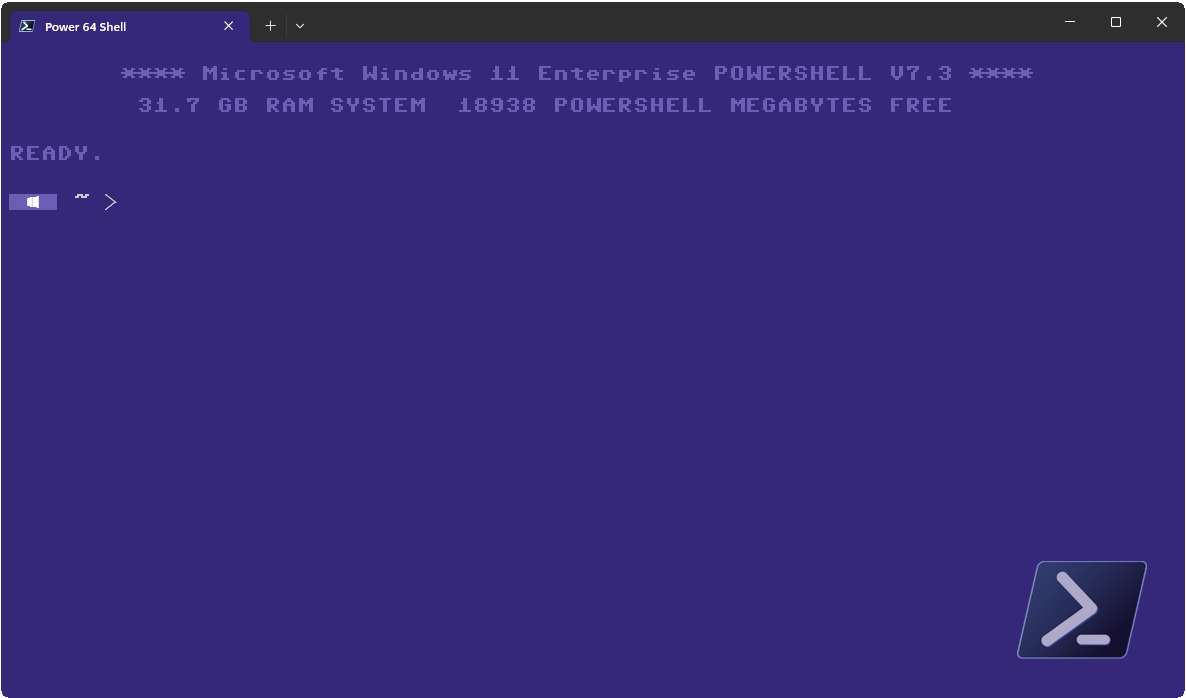
The Retro Terminal - Looking good in 8-Bit | Part 3
Since my last two articles, PowerShell, as well as the terminal itself, has evolved. It is therefore time to bring Retro PowerShell up to date. Where the first two parts cover Windows PowerShell, this article is an update for PowerShell Core and Windows Terminal and will show you how to let your Terminal look like a Commodore 64.
This post is

Friday, March 15, 2019
Setting SharePoint View properties with the PnP-Framework
The PnP-Framework has made a lot of task easier when taking care of a SharePoint environment. However, the documentation is still… ehem, let’s say developer friendly. In this article I’ll take a look at the Set-PnPView cmdlet and what values can be configured and why.
Wednesday, February 1, 2017
Code Snippet: Load the SharePoint Office PnP Module in PowerShell
How do you load the PowerShell OfficeP PnP module for SharePoint?
Addendum: I've added a try/catch block to the code. This way you can be sure the module is loaded.
# Loading Office Online PnP Module
try {
    if((Get-Module "Microsoft.Online.SharePoint.PowerShell" -ErrorAction SilentlyContinue) -eq $null) {
        Import-Module Microsoft.Online.SharePoint.PowerShell
        Write-Host "PowerShell module Microsoft.Online.SharePoint.PowerShell initialized"
    }
    else {
        Write-Host "PowerShell module Microsoft.Online.SharePoint.PowerShell loaded"
    }
}
catch {
    throw "PowerShell module Microsoft.Online.SharePoint.PowerShell initialization failed"
    exit 3
}
Tuesday, January 17, 2017
Connect to Office365 via Office PnP behind a proxy
How do you connect to your SharePoint Office365 tenant with the PowerShell if you are locked behind a proxy? This hint will probably work for all kind of PowerShell scripts, not only for Office PnP. I tried this with the Microsoft SharePoint Online extensions as well and it worked.
So my problem was, the company I was working for, had a proxy which could not be bypassed. The proxy settings have been set by a GPO and the network settings where fine so far. However the proxy used user authentication to access the internet. Now if I want to use the SharePoint Online tools, I must authenticate my PowerShell session at the proxy so the tools can access the internet too.
The trick to get your PowerShell connected is quite simple. You only need to enter the following line:
[System.Net.WebRequest]::DefaultWebProxy.Credentials = [System.Net.CredentialCache]::DefaultCredentials
Now you should be able to connect to Office365 SharePoint without problems. If you don't want to enter this line every time you open a new PowerShell, you could add it to your PowerShell profile.
ise $PROFILE
then add this to the profile file:
#Set user default credentials for any webrequest
"Setting the users default credentials for WebRequests..." | Write-Host -ForegroundColor White
[System.Net.WebRequest]::DefaultWebProxy.Credentials = [System.Net.CredentialCache]::DefaultCredentials
Monday, January 2, 2017
How to remove an unsuccessful AutoSPInstaller job
What do you need to uninstall from your server if the installation with AutoSPInstaller wasn’t successful?
Installing a SharePoint Server with the AutoSPInstaller job has become the gold standard for administrators. It’s much easier for large farms and offers a high degree of quality. However, using AutoSPInstaller can be a bit of a hassle. Until you get the xml configuration right, you normally need a few approaches. You can start the installation again, but you need to remove a few things first before it will re-run successfully.
Languages
If you are installing language files with your SharePoint Farm, remove these packages first. Open the Windows Control Panel, go to Programs -> Uninstall a program. Search for any SharePoint Language Package that has been installed and remove them all.
SharePoint Server
Leave the Control Panel open. Search for the SharePoint Server binary installation package and remove that file as well.
Prerequisites
These files must not be removed. They can stay on the server.
Internet Information Server
Open the IIS Management and look for any Web Application that was created during the AutoSPInstaller setup. Remove all of them and the Application Pools as well. Because AutoSPInstaller will create all of them again, I normally delete all Application Pools and Web Applications from IIS. This way I’ll have a clean system after setup. The Web Applications create directories in the VirtualDirectories folder of the IIS working directory. You normally find it here: C:\inetpub\wwwroot\wss Remove the folders from the Web Applications you have deleted from here as well.
Log files
Remove the log files from the ULS logging directory or do a clean up after you sucsessfully installed SharePoint.
Search Index
If the SharePoint Search has been created already, go to the directory where the search index is stored. Delete all GUID directories you find there.
SQL Server
Open the SQL Management Studio and connect with the SQL instance you are using to host the SharePoint databases. Delete any database that has been created by the AutoSPInstaller script. At the prompt to delete the database, you should select to close any connection to the database.
Finally
Now reboot your server. After login back into the server you can restart the installation with AutoSPInstaller. Any traces of previous installations will be gone then.
Thursday, October 29, 2015
Latest release of the SPBestWarmUp Script available
I finished the updates on the latest version of the SPBestWarmUp script and we’re heading version 2.0 (Stockholm). You can get it here on Codeplex.
SPBestWarmUp is a PowerShell script that will load all of your SharePoint web sites. By doing so it helps to populate the IIS and the asp.net caches. This will speed up accessing your server and give your users a better overall experience.
Change log:
Feedback is welcome. If you find any issue, please use the issues panel on the Codeplex project site.
SPBestWarmUp is a PowerShell script that will load all of your SharePoint web sites. By doing so it helps to populate the IIS and the asp.net caches. This will speed up accessing your server and give your users a better overall experience.
Change log:
- Removed the Internet Explorer to fetch webpages and switched instead to the Invoke-WebRequest Cmdlet. IE will be deprecated in the future anyway.
- Collecting all relevant Urls prior fetching them from the server.
- Temporarily removed the ability to use own Urls. Will be added in the future as a parameter and/or as a file. However, if you look at the code, you’ll find it isn’t hard to write your own little patch if you need to.
Feedback is welcome. If you find any issue, please use the issues panel on the Codeplex project site.
Wednesday, October 21, 2015
Change the SQL recovery model in bulk with the PowerShell
Sometimes you need to configure settings on your SQL server in bulk, like e.g. the recovery model. In my case, we needed to change all databases to the Full recovery model, due to the usage of Always-On. Scince SQL 2012 there is a great way to do this with the PowerShell.
First open a Powershell and see if the SQL PowerShell module is loaded.
Use ls or dir to see what options you have
Change the 'directory' with cd SQL. This way you go to the SQL server configuration. Do so as well for the servers host name and the SQL server instance, until you you enter the databases directory. Here you'll find all the databases hosted by the SQl server instance you choose. Now we can run the following script to change the recovery model in bulk.
First open a Powershell and see if the SQL PowerShell module is loaded.
Get-Module SQLPSIf it isn't loaded, do so by using
Import-Module SQLPSFor scripts you should check if the module is loaded before you import it like this:
if ((Get-Module "SQLPS" -ea silentlycontinue) -eq $null)
{
    Import-Module SQLPS -DisableNameChecking
}
Now you can change to the SQL server by simply entering SQLSERVER:Use ls or dir to see what options you have
Change the 'directory' with cd SQL. This way you go to the SQL server configuration. Do so as well for the servers host name and the SQL server instance, until you you enter the databases directory. Here you'll find all the databases hosted by the SQl server instance you choose. Now we can run the following script to change the recovery model in bulk.
foreach ($db in ls) {
  if ($db.RecoveryModel -ne "Full") {
    $db.RecoveryModel = "Full"
    $db.Alter()
  }
}
Friday, May 8, 2015
Securing SharePoint 2013 connections via TLS - Part 1
Securing your SharePoint servers via TLS is mandatory these days. Learn how to encrypt your Site Collection communication and how to configure automated redirection to a secure connection.
Using SSL/TLS to secure your webservers has always been a good idea, not only since three letter agencies are eavesdropping on everybody’s Internet communication. Preventing hacking and information lost is also on the IT-Professionals to-do list for a very long time.
There are a few ways to get a new certificate for the Internet Information Server, but all in all in breaks down to the simple question: Do I need a trusted certificate or not.
If you plan to publish your site to the web I’d suggest you get yourself a trusted certificate from a certificate authority. There are a lot of different certification companies out there and all of them are happy to take your money.
If you plan to stay in a local network, you could consider using your own Public Key Infrastructure (PKI). But this however might be shooting a little too high. Especially if you only have a few servers to secure and no other plans to use the PKI.
 |
| Picture by Ondrej Supitar / unsplash.com |
Using SSL/TLS to secure your webservers has always been a good idea, not only since three letter agencies are eavesdropping on everybody’s Internet communication. Preventing hacking and information lost is also on the IT-Professionals to-do list for a very long time.
Which certificate do we use
There are a few ways to get a new certificate for the Internet Information Server, but all in all in breaks down to the simple question: Do I need a trusted certificate or not.
If you plan to publish your site to the web I’d suggest you get yourself a trusted certificate from a certificate authority. There are a lot of different certification companies out there and all of them are happy to take your money.
If you plan to stay in a local network, you could consider using your own Public Key Infrastructure (PKI). But this however might be shooting a little too high. Especially if you only have a few servers to secure and no other plans to use the PKI.
This post is
Wednesday, April 1, 2015
Adding PDF and other MIME Types to the Browser File Handling property

Using PDF files in SharePoint is however a very common task. You can store them in document libraries like every other document, open and save them or move them around. But not being able to open the PDF inside of the browser is a very annoying behavior and it forces the user to save copies on their local computer. Haven’t we installed SharePoint to get rid of local copies swarming around the office?
Wednesday, February 18, 2015
SharePoint Tools: A new CAML Query Designer
Praveen Battula has released a new tool on his blog to work with CAML Queries. Not only you can export the plain CAML Query it self, the tool lets you generate code for C#, JavaScript, WebServices and PowerShell as well.
Have a look at his blog:
http://praveenbattula.blogspot.de/2015/02/download-caml-query-designer.html
Have a look at his blog:
http://praveenbattula.blogspot.de/2015/02/download-caml-query-designer.html
Wednesday, January 21, 2015
Code Snippet: Iterating thru all websites
How to iterate thru all SiteCollections and containing the Websites. This script also shows a progressbar on screen:
$sites = Get-SPSite -Limit All
$siteIter = 0
foreach($site in $sites) {
    Write-Progress -PercentComplete (($siteIter / $sites.Count) * 100) -Activity "Iteration Sites" -Status $site.HostName
    $webIter = 0

    # Do something here

    foreach($web in $site.AllWebs) {
        Write-Progress -PercentComplete (($webIter / $site.AllWebs.Count) * 100) -Activity "Iteration Webs" -Status $web.Title -Id 2
        Write-Host $web.Title
        $webIter++

        # Do something here
    }
    $siteIter++
}
Code Snippet: Load the SharePoint PowerShell Module
How do you load the PowerShell module for SharePoint?
Addendum: I've added a try/catch block to the code. This way you can be sure the module is loaded.
# Loading SharePoint Module
try {
    if ((Get-PSSnapin "microsoft.SharePoint.Powershell" -ea silentlycontinue) -eq $null)
    {
        Add-PSSNapin Microsoft.SharePoint.Powershell
    }
}
catch {
    throw "Microsoft SharePoint PowerShell AddIn initialization failed"
    exit 3
}
Wednesday, November 19, 2014
Log Parser Studio 2.2
Log files are a hassle. Too many entries and bad formatting make it a challenge to work with logs. So if you are already familiar with Microsofts LogParser, you’ll love to hear that there is an even better way to work with Log files.
Log Parser Studio is a Windows Tool that uses LogParser and gives you a GUI to work with. This way it's easier to create adhoc reports of your logfiles. You can export the query as a script and then automate your tasks.
http://gallery.technet.microsoft.com/office/Log-Parser-Studio-cd458765
LogParser
http://www.microsoft.com/en-us/download/details.aspx?displaylang=en&id=24659
Getting Started with the Log Parser Studio
http://blogs.technet.com/b/karywa/archive/2013/04/21/getting-started-with-log-parser-studio.aspx
Log Parser Studio is a Windows Tool that uses LogParser and gives you a GUI to work with. This way it's easier to create adhoc reports of your logfiles. You can export the query as a script and then automate your tasks.
http://gallery.technet.microsoft.com/office/Log-Parser-Studio-cd458765
LogParser
http://www.microsoft.com/en-us/download/details.aspx?displaylang=en&id=24659
Getting Started with the Log Parser Studio
http://blogs.technet.com/b/karywa/archive/2013/04/21/getting-started-with-log-parser-studio.aspx
Tuesday, October 14, 2014
Fire up those caches
 |
| Picture by Caroline Gutman |
This post is
Thursday, July 10, 2014
Readers galore - Microsoft published 130 eBooks for free download
Microsoft provides developers and IT professionals with new reading material and released 130 free eBooks on various topics. Beside of the PDF format some of the books are offered as MOBI and EPUB formats as well.
Microsoft manager Eric Ligman is regularly publishing free E-books and other information material on his MSDN blog. Eric and his employer are now stacking up the pile and provide a staggering 130 additional E-books for free download.
Microsoft manager Eric Ligman is regularly publishing free E-books and other information material on his MSDN blog. Eric and his employer are now stacking up the pile and provide a staggering 130 additional E-books for free download.
Wednesday, April 9, 2014
The Retro Powershell - Looking good in 8-Bit | Part 2
Last year I wrote a post how to style your PowerShell to look more like the good 'ol Commodore 64. Unfortunately the font of the PowerShell didn't look quite right. In this post I'll show you how to patch this as well so you get the true feeling.

Monday, February 24, 2014
Crossroads: Adding a Cisco Switch into your Hyper-V installation
This Blog is mainly about SharePoint, but from time to time there are other topics that might be of interest. That’s why I’ll start a new section called Crossroads were I’ll keep you posted about other news that will fit into the broader context of SharePoint.
Today I’ll start with the question: Did you know, that you can add a virtual Cisco Switch to your Hyper-V installation? Best part is, you might even use it free of charge.
Tuesday, November 19, 2013
Removing a corrupted search service from SharePoint 2010
Removing the SharePoint 2010 Search Service can become quite a pain. Especially when the removal hasn’t work out the way it should have. So what do you do when the removal failed and your attempts to reinstall the search service are failing as well? I suffered from the same pains and therefor I’ll go thru the step I took to get my search service back online in this blog article.

Wednesday, October 9, 2013
The Retro Powershell - Looking good in 8-Bit | Part 1
I wrote a little script that, when placed in your PowerShell Profile, will print a message similar to the old boot message you got from your breadbox.
Like a lot of people out there I started my IT career with a Commodore 64. It is still today a class of its own and amazing to see what people are capable to do with this incredible machine. Not only was the Commodore64 the best selling home computer of all times, it still has a huge fan base today. So why not get back the good old feeling back into your PowerShell?

Subscribe to:
Posts (Atom)
Featured Post
How are Microsoft Search quota consumed?
With Office 365 Search, Microsoft has created a central entry point for the modern workplace. In one convenient spot, users can access all ...